> ## Documentation Index
> Fetch the complete documentation index at: https://www.zinc.com/docs/llms.txt
> Use this file to discover all available pages before exploring further.
# Retailer Credentials
> Configure retailer account credentials (managed accounts) so Zinc can place and process orders on your behalf.
Managed accounts (aka retailer credentials) allow you to use your own retailer
accounts (e.g., Amazon) for order processing. This gives you control over the accounts
used to place orders and can help with order limits and account management.
## Overview
When you create retailer credentials, Zinc uses those accounts to log in and place orders on your behalf. Credentials are encrypted and stored securely.
If you don't configure retailer credentials, Zinc will use default internal accounts
to process your orders.
## Order Locking
To prevent conflicts and ensure order integrity, managed accounts are locked during order processing. Only one order can be processed at a time per managed account.
If you submit multiple orders simultaneously using the same managed account, they will be queued and processed sequentially. This prevents issues like duplicate cart items or checkout conflicts that could occur if multiple orders were placed concurrently on the same retailer account.
## Two-Factor Authentication (TOTP)
If your retailer account has two-factor authentication enabled, you must provide the TOTP secret key when creating or updating credentials.
Using 2FA is the most secure and reliable method for avoiding account verification issues during order processing.
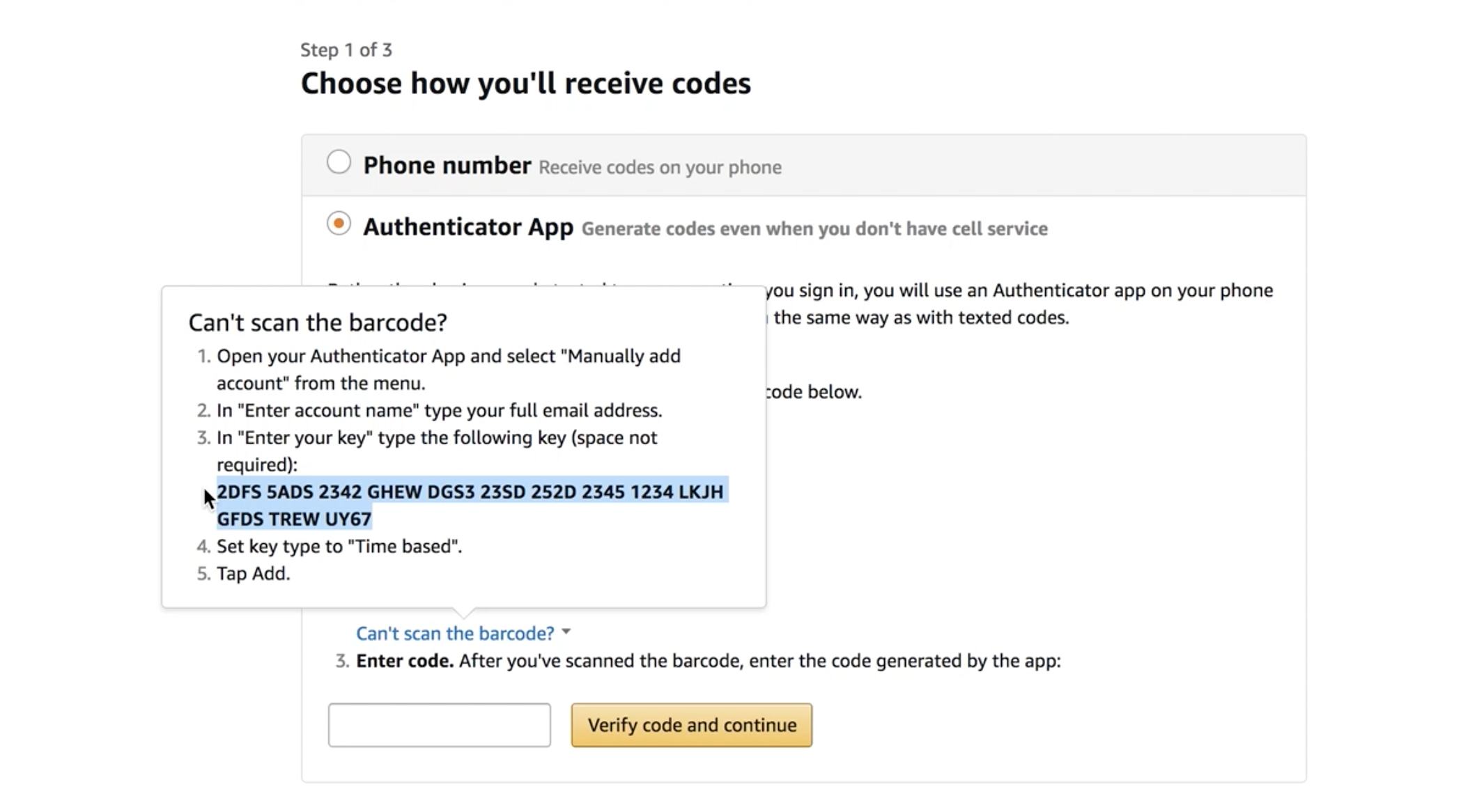
### Finding Your Amazon TOTP Key
To find your Amazon TOTP secret key:
1. Go to Amazon's Login & Security settings
2. Enable Two-Factor Authentication
3. When shown the QR code, click **"Can't scan the barcode?"**
4. Copy the displayed secret key (64 characters)
The TOTP key is the 64-character secret key, NOT the 6-digit time-based code that changes every 30 seconds.
 ## Email Forwarding
Retailers like Amazon may send verification codes via email during login. To handle these
automatically, you can forward emails from your retailer account to a special Zinc email
address. Zinc will parse incoming emails and automatically extract verification codes,
so orders can proceed without manual intervention.
Each managed account is assigned a dedicated forwarding address. You can find this address
in the [Zinc dashboard](https://app.zinc.com) under your managed account settings.
Once email forwarding is configured and verified, the `has_forwarding` field on your
managed account will be set to `true`.
### Setting Up Email Forwarding in Gmail
Rather than forwarding all incoming mail to Zinc, we recommend creating a Gmail filter
that only forwards emails from the retailer. This keeps your forwarding targeted and
avoids sending unrelated emails to Zinc.
Before Gmail can forward to any address, it must be registered. Go to **Settings >
Forwarding and POP/IMAP** and click **Add a forwarding address**. Enter the Zinc
forwarding email address shown in your managed account settings on the
[Zinc dashboard](https://app.zinc.com).
Google will send a confirmation email to the Zinc address. Zinc automatically verifies
the forwarding request — this may take a few minutes. Once confirmed, the address will
appear as verified in Gmail.
Do **not** enable the "Forward a copy of incoming mail to" option on this page. That
would forward all of your email. Instead, leave it set to **Disable forwarding** and
use a filter in the next steps to forward only retailer emails.
Go to **Settings > Filters and Blocked Addresses** and click **Create a new filter**.
In the **From** field, enter the retailer's email domain. For example, for Amazon
enter `amazon.com`. This will match all emails sent from any `@amazon.com` address.
Leave the other fields blank and click **Create filter**.
Check **Forward it to** and select the Zinc forwarding address from the dropdown.
You can also check **Never send it to Spam** to make sure retailer emails aren't
missed. Click **Create filter** to save.
If you also want to forward emails that are already in your inbox (e.g., a pending
verification code), check **Also apply filter to matching conversations** when creating
the filter.
## Endpoints
| Method | Endpoint | Description |
| -------- | ------------------------------------------------------------------------------------------- | ---------------------------------- |
| `GET` | [`/managed-accounts`](/docs/v2/api-reference/managed-accounts/list-managed-accounts) | List all your retailer credentials |
| `POST` | [`/managed-accounts`](/docs/v2/api-reference/managed-accounts/create-managed-account) | Create new retailer credentials |
| `PUT` | [`/managed-accounts/{short_id}`](/docs/v2/api-reference/managed-accounts/update-managed-account) | Update existing credentials |
| `DELETE` | [`/managed-accounts/{short_id}`](/docs/v2/api-reference/managed-accounts/delete-managed-account) | Delete credentials |
## Create Credentials
```bash theme={null}
curl -X POST https://api.zinc.com/managed-accounts \
-H "Authorization: Bearer " \
-H "Content-Type: application/json" \
-d '{
"email": "your-amazon-email@example.com",
"password": "your-amazon-password",
"retailer": "amazon",
"totp_secret": "YOUR_64_CHARACTER_SECRET_KEY"
}'
```
### Request Fields
| Field | Type | Required | Description |
| ------------- | ------ | -------- | ------------------------------------------------------------------------------------------------ |
| `email` | string | Yes | The email address for the retailer account |
| `password` | string | No | The password for the retailer account (encrypted on storage) |
| `retailer` | string | No | Retailer name (e.g., `amazon`). If omitted, applies as default credentials |
| `totp_secret` | string | No | The secret key for two-factor authentication. Required if 2FA is enabled on the retailer account |
### Response
```json theme={null}
{
"id": "550e8400-e29b-41d4-a716-446655440000",
"short_id": "zn_acct_a1b2c3d4",
"email": "your-amazon-email@example.com",
"retailer": "amazon",
"has_totp": true,
"created_at": "2026-01-15T10:30:00Z",
"updated_at": "2026-01-15T10:30:00Z"
}
```
Passwords and TOTP secrets are never returned in API responses. They are encrypted and stored securely. The `has_totp` field indicates whether 2FA is configured.
## List Credentials
```bash theme={null}
curl https://api.zinc.com/managed-accounts \
-H "Authorization: Bearer "
```
### Response
```json theme={null}
{
"credentials": [
{
"id": "550e8400-e29b-41d4-a716-446655440000",
"short_id": "zn_acct_a1b2c3d4",
"email": "your-amazon-email@example.com",
"retailer": "amazon",
"has_totp": true,
"created_at": "2026-01-15T10:30:00Z",
"updated_at": "2026-01-15T10:30:00Z"
}
],
"total": 1
}
```
## Update Credentials
Use the `short_id` from the credentials response to update:
```bash theme={null}
curl -X PUT https://api.zinc.com/managed-accounts/zn_acct_a1b2c3d4 \
-H "Authorization: Bearer " \
-H "Content-Type: application/json" \
-d '{
"password": "new-password"
}'
```
### Request Fields
All fields are optional. Only provided fields are updated.
| Field | Type | Description |
| ------------- | ------ | ------------------------- |
| `email` | string | New email address |
| `password` | string | New password |
| `retailer` | string | New retailer association |
| `totp_secret` | string | Update the 2FA secret key |
## Delete Credentials
```bash theme={null}
curl -X DELETE https://api.zinc.com/managed-accounts/zn_acct_a1b2c3d4 \
-H "Authorization: Bearer "
```
Returns `204 No Content` on success.
## Response Fields
| Field | Type | Description |
| ---------------- | ----------------- | ----------------------------------------------------------- |
| `id` | string (UUID) | Unique identifier |
| `short_id` | string | Short identifier used in URLs (e.g., `zn_acct_a1b2c3d4`) |
| `email` | string | Retailer account email |
| `retailer` | string or null | Retailer name, or null if default credentials |
| `has_totp` | boolean | Whether TOTP 2FA is configured for this account |
| `has_forwarding` | boolean | Whether email forwarding has been verified for this account |
| `created_at` | string (ISO 8601) | When the credentials were created |
| `updated_at` | string (ISO 8601) | When the credentials were last updated |
## Best Practices
1. **Use dedicated accounts** - Create retailer accounts specifically for Zinc orders to avoid conflicts with personal orders
2. **Monitor account health** - Retailer accounts can be locked if flagged for unusual activity. Check for `login_failed` or `account_locked` errors
3. **Keep credentials updated** - If you change your retailer account password, update it here to avoid order failures
4. **Enable 2FA** - Two-factor authentication prevents account lockouts from verification challenges and is the most reliable method for automated ordering
## Email Forwarding
Retailers like Amazon may send verification codes via email during login. To handle these
automatically, you can forward emails from your retailer account to a special Zinc email
address. Zinc will parse incoming emails and automatically extract verification codes,
so orders can proceed without manual intervention.
Each managed account is assigned a dedicated forwarding address. You can find this address
in the [Zinc dashboard](https://app.zinc.com) under your managed account settings.
Once email forwarding is configured and verified, the `has_forwarding` field on your
managed account will be set to `true`.
### Setting Up Email Forwarding in Gmail
Rather than forwarding all incoming mail to Zinc, we recommend creating a Gmail filter
that only forwards emails from the retailer. This keeps your forwarding targeted and
avoids sending unrelated emails to Zinc.
Before Gmail can forward to any address, it must be registered. Go to **Settings >
Forwarding and POP/IMAP** and click **Add a forwarding address**. Enter the Zinc
forwarding email address shown in your managed account settings on the
[Zinc dashboard](https://app.zinc.com).
Google will send a confirmation email to the Zinc address. Zinc automatically verifies
the forwarding request — this may take a few minutes. Once confirmed, the address will
appear as verified in Gmail.
Do **not** enable the "Forward a copy of incoming mail to" option on this page. That
would forward all of your email. Instead, leave it set to **Disable forwarding** and
use a filter in the next steps to forward only retailer emails.
Go to **Settings > Filters and Blocked Addresses** and click **Create a new filter**.
In the **From** field, enter the retailer's email domain. For example, for Amazon
enter `amazon.com`. This will match all emails sent from any `@amazon.com` address.
Leave the other fields blank and click **Create filter**.
Check **Forward it to** and select the Zinc forwarding address from the dropdown.
You can also check **Never send it to Spam** to make sure retailer emails aren't
missed. Click **Create filter** to save.
If you also want to forward emails that are already in your inbox (e.g., a pending
verification code), check **Also apply filter to matching conversations** when creating
the filter.
## Endpoints
| Method | Endpoint | Description |
| -------- | ------------------------------------------------------------------------------------------- | ---------------------------------- |
| `GET` | [`/managed-accounts`](/docs/v2/api-reference/managed-accounts/list-managed-accounts) | List all your retailer credentials |
| `POST` | [`/managed-accounts`](/docs/v2/api-reference/managed-accounts/create-managed-account) | Create new retailer credentials |
| `PUT` | [`/managed-accounts/{short_id}`](/docs/v2/api-reference/managed-accounts/update-managed-account) | Update existing credentials |
| `DELETE` | [`/managed-accounts/{short_id}`](/docs/v2/api-reference/managed-accounts/delete-managed-account) | Delete credentials |
## Create Credentials
```bash theme={null}
curl -X POST https://api.zinc.com/managed-accounts \
-H "Authorization: Bearer " \
-H "Content-Type: application/json" \
-d '{
"email": "your-amazon-email@example.com",
"password": "your-amazon-password",
"retailer": "amazon",
"totp_secret": "YOUR_64_CHARACTER_SECRET_KEY"
}'
```
### Request Fields
| Field | Type | Required | Description |
| ------------- | ------ | -------- | ------------------------------------------------------------------------------------------------ |
| `email` | string | Yes | The email address for the retailer account |
| `password` | string | No | The password for the retailer account (encrypted on storage) |
| `retailer` | string | No | Retailer name (e.g., `amazon`). If omitted, applies as default credentials |
| `totp_secret` | string | No | The secret key for two-factor authentication. Required if 2FA is enabled on the retailer account |
### Response
```json theme={null}
{
"id": "550e8400-e29b-41d4-a716-446655440000",
"short_id": "zn_acct_a1b2c3d4",
"email": "your-amazon-email@example.com",
"retailer": "amazon",
"has_totp": true,
"created_at": "2026-01-15T10:30:00Z",
"updated_at": "2026-01-15T10:30:00Z"
}
```
Passwords and TOTP secrets are never returned in API responses. They are encrypted and stored securely. The `has_totp` field indicates whether 2FA is configured.
## List Credentials
```bash theme={null}
curl https://api.zinc.com/managed-accounts \
-H "Authorization: Bearer "
```
### Response
```json theme={null}
{
"credentials": [
{
"id": "550e8400-e29b-41d4-a716-446655440000",
"short_id": "zn_acct_a1b2c3d4",
"email": "your-amazon-email@example.com",
"retailer": "amazon",
"has_totp": true,
"created_at": "2026-01-15T10:30:00Z",
"updated_at": "2026-01-15T10:30:00Z"
}
],
"total": 1
}
```
## Update Credentials
Use the `short_id` from the credentials response to update:
```bash theme={null}
curl -X PUT https://api.zinc.com/managed-accounts/zn_acct_a1b2c3d4 \
-H "Authorization: Bearer " \
-H "Content-Type: application/json" \
-d '{
"password": "new-password"
}'
```
### Request Fields
All fields are optional. Only provided fields are updated.
| Field | Type | Description |
| ------------- | ------ | ------------------------- |
| `email` | string | New email address |
| `password` | string | New password |
| `retailer` | string | New retailer association |
| `totp_secret` | string | Update the 2FA secret key |
## Delete Credentials
```bash theme={null}
curl -X DELETE https://api.zinc.com/managed-accounts/zn_acct_a1b2c3d4 \
-H "Authorization: Bearer "
```
Returns `204 No Content` on success.
## Response Fields
| Field | Type | Description |
| ---------------- | ----------------- | ----------------------------------------------------------- |
| `id` | string (UUID) | Unique identifier |
| `short_id` | string | Short identifier used in URLs (e.g., `zn_acct_a1b2c3d4`) |
| `email` | string | Retailer account email |
| `retailer` | string or null | Retailer name, or null if default credentials |
| `has_totp` | boolean | Whether TOTP 2FA is configured for this account |
| `has_forwarding` | boolean | Whether email forwarding has been verified for this account |
| `created_at` | string (ISO 8601) | When the credentials were created |
| `updated_at` | string (ISO 8601) | When the credentials were last updated |
## Best Practices
1. **Use dedicated accounts** - Create retailer accounts specifically for Zinc orders to avoid conflicts with personal orders
2. **Monitor account health** - Retailer accounts can be locked if flagged for unusual activity. Check for `login_failed` or `account_locked` errors
3. **Keep credentials updated** - If you change your retailer account password, update it here to avoid order failures
4. **Enable 2FA** - Two-factor authentication prevents account lockouts from verification challenges and is the most reliable method for automated ordering